
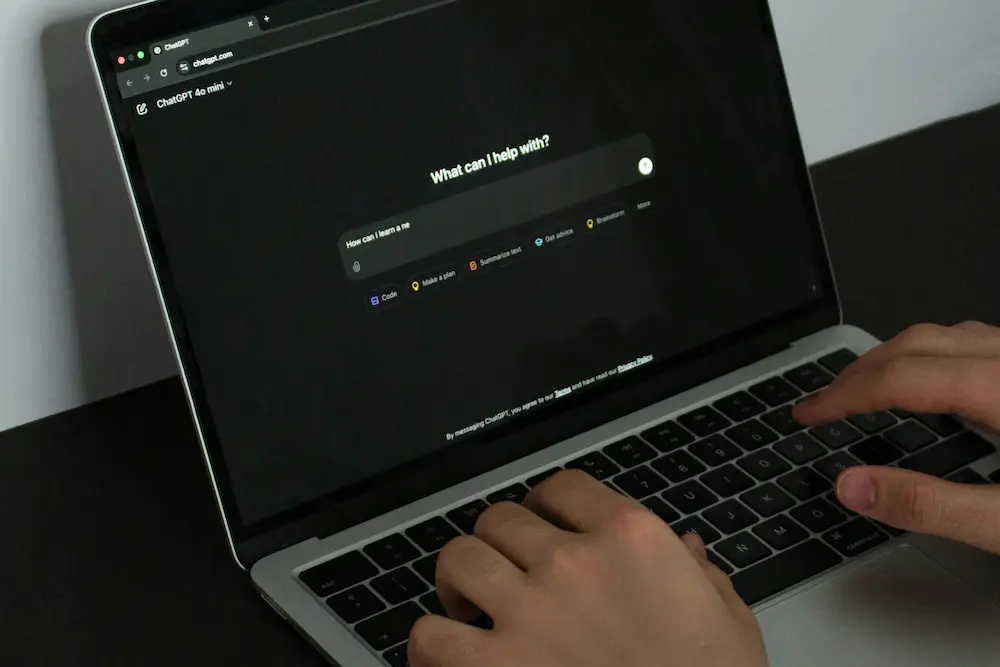
ChatGPT Voice lets you speak with ChatGPT and hear its responses as part of a live conversation. It is documented for the ChatGPT mobile apps and desktop web, requires microphone permission, and produces a transcript in your chat history after the conversation ends.
Where ChatGPT Voice works and what you need
OpenAI documents Voice as available in the ChatGPT apps for iOS and Android and through ChatGPT in a desktop web browser. On a Mac or Windows PC, desktop web is the confirmed route covered by OpenAI’s ChatGPT Voice guide. Support should not be assumed to be identical in the native macOS and Windows apps.
You must allow the ChatGPT app or your browser to access the microphone. Without that permission, ChatGPT cannot receive your speech during a Voice conversation.
Voice is not the same as Dictation. Voice provides a live spoken exchange in which ChatGPT answers aloud. Dictation records your speech and converts it into editable text that you review before sending. OpenAI’s Voice Dictation FAQ documents that distinction.
The presence of Voice and the options shown within it can vary by plan, region, account, workspace, app version and staged rollout.
How to start a ChatGPT Voice conversation
- Open ChatGPT. Use the iOS or Android app, or open ChatGPT in a desktop web browser.
- Select the Voice control. Look for the Voice control in or near the message bar or prompt area. Its exact appearance and position can differ between platforms and interface versions.
- Allow microphone access. If your app or browser asks for permission, approve microphone access for ChatGPT.
- Choose a voice when prompted. On first use, ChatGPT may ask you to select from the voices available to your account. The available choices can change, so there is no need to look for a particular voice name.
- Begin speaking. Ask a question or give an instruction normally, then wait for ChatGPT’s spoken response. Continue speaking to hold a back-and-forth conversation.
If the Voice control is present but the microphone cannot be used, check whether microphone access is allowed for the ChatGPT app or the current browser. A missing Voice control does not necessarily mean there is a microphone problem because access can also depend on account and rollout conditions. First-use requirements and availability caveats are covered in OpenAI’s Voice Mode FAQ.
How to control and end the conversation
- Mute your microphone: Select the microphone control during the active session. ChatGPT will stop receiving speech from your microphone while it is muted.
- Unmute your microphone: Select the microphone control again when you are ready to continue speaking.
- Change the voice when supported: Use the voice-selection control if one appears in your current Voice interface. Its availability and location can vary, so not every account or platform should be expected to show the same control during an active conversation.
- End the conversation: Select the exit or end control. This closes the live Voice session and returns you to the chat.
Describe and identify these controls by their function rather than relying only on their position, since OpenAI can move or redesign them between app and web releases.
What happens to the conversation afterward
After you end a Voice conversation, its transcript appears in the corresponding conversation in your ChatGPT history. You can open that chat later to review the text generated from the spoken exchange.
OpenAI’s Voice documentation also indicates that associated voice clips are stored with the transcript. Exact retention and model-improvement sharing rules can depend on current OpenAI policies, workspace controls and your applicable data settings, so avoid assuming a fixed retention period or that every account uses the same sharing settings.
Voice may use context that is otherwise available to the conversation. If ChatGPT has remembered personal information that you want to remove, that is handled separately through the controls used to manage or clear ChatGPT memory.
Platform and availability differences to check
- iOS and Android: Use the current ChatGPT mobile app and look for the Voice control around the message area. The design can differ by operating system and app version.
- macOS and Windows: ChatGPT in a desktop web browser is the confirmed desktop option in the supplied official evidence. Do not assume the native desktop apps have the same Voice support or controls without checking the current release.
- Plans, regions and workspaces: Voice availability, usage and individual options can vary by plan, region, account type and managed-workspace policy.
- App versions and rollouts: OpenAI may introduce interface changes gradually. Another user may therefore see a different entry point or set of controls even on the same platform.
The live Voice workflow covered here is for spoken conversation. The documented experience described in the supplied evidence does not initially include video or screen sharing, and those features are outside this workflow.