
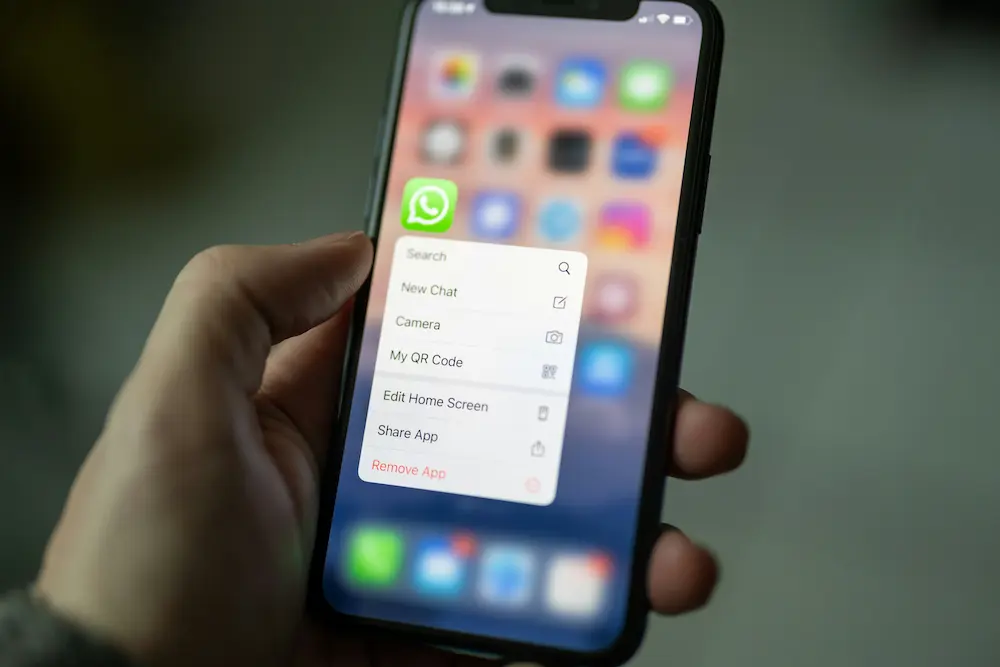
If you want to know how to link WhatsApp to another phone, the supported approach is to use WhatsApp linked devices. This lets a second phone work as a companion device for the same WhatsApp account, instead of creating a separate account or using an unsafe cloning tool.
The exact labels you see can vary by Android or iPhone version, WhatsApp version, and feature rollout. The basic workflow is the same: open WhatsApp on the second phone, choose the companion-device linking option, then complete the link with a QR code or, where available, a phone-number linking flow.
This guide keeps to that one task: linking a second phone, understanding what to expect after it syncs, fixing common setup blockers, and removing the linked phone later.
What it means to link WhatsApp to another phone
Linking WhatsApp to another phone means the second phone becomes a companion device for your existing WhatsApp account. You are not registering a new WhatsApp account on that phone, and you are not moving your account away from your main phone.
That distinction matters. If you try to register the same number as a new account on the second phone, you may be pushed into account verification rather than linked-device setup. Linked-device setup is different: the second phone is added through WhatsApp’s device-linking flow and remains connected to the same account.
Use only the official WhatsApp app and the built-in linking flow. Avoid modified WhatsApp apps, account cloning tools, or services that claim to duplicate your WhatsApp account outside the official app. They can create privacy and account-security risks, and they are not needed for normal companion-device use.
For official source context, WhatsApp maintains the WhatsApp Help Center. Because feature labels and availability can change, treat your in-app prompts as the final instruction for your account.
How to link WhatsApp to another phone with a QR code
The QR code method is the main linked-device flow most users should try first. You will need your main phone with the active WhatsApp account and the second phone you want to link.
- Install or open the official WhatsApp app on the second phone. Use the standard WhatsApp app from your device’s app store. Do not use a modified or cloned app.
- Start setup on the second phone. When WhatsApp opens, look for the option that lets you link the phone as a companion device instead of registering it as a new account. The exact wording may vary.
- Display the linking screen on the second phone. If the QR method is offered, WhatsApp will show a QR code or direct you to the next linking step.
- Open the linked-devices area on your main phone. On the phone where your WhatsApp account is already active, go to WhatsApp’s linked-devices controls.
- Scan the QR code. Use the main phone to scan the code shown on the second phone, following the on-screen prompts.
- Wait for linking to finish. Keep both phones nearby and connected while WhatsApp completes the setup. When it finishes, the second phone should open into your WhatsApp account as a linked device.
- Confirm the device appears as linked. On the main phone, check the linked-devices area to confirm the second phone is listed.
On Android and iPhone, the idea is the same even when the screen layout differs: the second phone starts companion-device setup, and the main phone approves the link. If you do not see the same labels as someone else’s device, rely on the official prompts shown in your app rather than forcing an unrelated account setup path.
How to link WhatsApp with a phone number if the option appears
Some users may see an option to link WhatsApp with a phone number instead of scanning a QR code. This can be useful when scanning is difficult, but it should not be treated as guaranteed for every account or device.
If the phone-number linking option appears during companion-device setup, follow the prompts shown in WhatsApp. Keep the process inside the official app, confirm that the account being linked is your own, and complete the steps until WhatsApp says the second phone is connected.
If you do not see phone-number linking, that does not necessarily mean something is wrong. The option may depend on app version, account eligibility, platform, region, or rollout timing. In that case, use the QR code method if it is available.
| Linking method | When to use it | Important note |
|---|---|---|
| QR code | Use this when the second phone shows a QR linking screen and your main phone can scan it. | This is the usual linked-device style flow for adding a companion device. |
| Phone number | Use this only if WhatsApp shows the phone-number linking option for your account. | Availability can vary, so do not assume every device will show it. |
What syncs after you link the second phone
After linking, the second phone is meant to work as a companion device for the same WhatsApp account. You should be able to use WhatsApp from that phone without creating a separate account for the same number.
In practical terms, expect your linked phone to show your WhatsApp account and conversations so you can continue messaging from the second device. However, avoid assuming that every feature, every old message, or every setting will behave identically on every linked device. Sync behavior can depend on the device, app version, and current WhatsApp rollout.
If you are looking for a chat and do not see it where expected, remember that chat organization features can affect visibility. For example, archived conversations may be separated from the main chat list; we cover that in our guide to archived chats in WhatsApp.
Settings that apply at the chat or account level can also appear differently while devices sync. If your question is specifically about disappearing-message timers or overrides, use our separate guide to WhatsApp disappearing messages instead of treating it as a device-linking problem.
A good rule is to finish the link first, let WhatsApp settle, then check whether the specific chat or feature behaves as expected. Do not unlink and relink repeatedly unless the setup is clearly stuck or the device is no longer needed.
Common problems when linking fails
If the second phone will not link, start with the basics that are directly related to linked devices. These checks do not guarantee a fix, but they help you avoid the most common wrong path: accidentally trying to register a new account instead of adding a companion device.
The second phone is asking you to register instead of link
Back up and look for the companion-device or linked-device option on the second phone. If you continue through normal registration, you may leave the linked-device workflow and move into account verification. For SMS or call code problems during a separate registration attempt, use our WhatsApp Verification Code Not Received guide instead.
The QR code will not scan
- Make sure you are scanning the QR code with the main phone that already has the active WhatsApp account.
- Keep the second phone’s screen bright enough and avoid glare.
- Refresh or restart the linking flow if the code appears expired or the screen has been open for a while.
- Check that both phones have a working internet connection before trying again.
The phone-number linking option is missing
If phone-number linking does not appear, use QR linking if available. The phone-number method may not be available to every user, account, or app version. Do not install unofficial apps just to force a feature that your official WhatsApp app does not show.
The second phone links but does not stay connected as expected
Open the linked-devices area on the main phone and review the device list. If the second phone no longer appears there, it may need to be linked again through the official flow. If it does appear, open WhatsApp on the second phone and give it time to reconnect on a stable connection.
The app screens do not match instructions you found elsewhere
WhatsApp can change labels and layouts over time. If a guide mentions an exact label that is not on your phone, do not tap unrelated options just to match it. Stay within the official linked-device or companion-device setup path shown in your app.
How to unlink a WhatsApp device
When you no longer want to use WhatsApp on the second phone, remove it from the linked-devices controls on your main phone. Uninstalling the app from the second phone can remove local access, but the cleaner account-control step is to unlink it from the main account’s device list.
- Open WhatsApp on your main phone. Use the phone where your WhatsApp account is active.
- Go to the linked-devices area. This is where WhatsApp lists phones, computers, or other devices connected to your account.
- Select the second phone. Choose the companion phone you want to remove.
- Use the unlink or log-out option shown in WhatsApp. Confirm the action if WhatsApp asks.
- Check the list again. The second phone should no longer appear as a linked device.
Unlink a device if you sold it, lost it, shared it with someone else, or simply no longer want WhatsApp accessible there. If you are unsure whether a device is yours, remove it and link again later only through the official flow.
Quick safety checklist before you link
- Use the official app only. Do not use WhatsApp clones or modified apps to run the same account on two phones.
- Keep control of your main phone. The main phone is used to approve or manage linked devices.
- Review linked devices periodically. Remove anything you do not recognize or no longer use.
- Do not share linking codes or prompts with others. Only link devices you own and control.
- Follow in-app prompts. If phone-number linking is unavailable, use QR linking rather than trying unsupported workarounds.
To use WhatsApp on two phones safely, think of the second phone as a companion device: link it through WhatsApp linked devices, confirm it appears in your device list, and unlink it from the main phone when you are done.
Is linking WhatsApp to another phone the same as making a second account?
No. Linking another phone uses the same WhatsApp account on a companion device. It is not a separate WhatsApp account for the same number.
Can I link WhatsApp to another phone with a phone number instead of a QR code?
Sometimes. If WhatsApp shows a phone-number linking option during companion-device setup, follow the on-screen prompts. If it does not appear, use QR linking if available because phone-number linking may vary by account, app version, platform, or rollout.
What should I do if the second phone will not link?
Check that both phones are using the official WhatsApp app, your main account is active, and you are following the linked-device or companion-device flow rather than normal account registration. If the QR code fails, refresh the linking flow, check the connection, and try again.
How do I remove the second phone later?
Open WhatsApp on your main phone, go to the linked-devices area, choose the second phone, and use the unlink or log-out option shown in WhatsApp.